

Overview
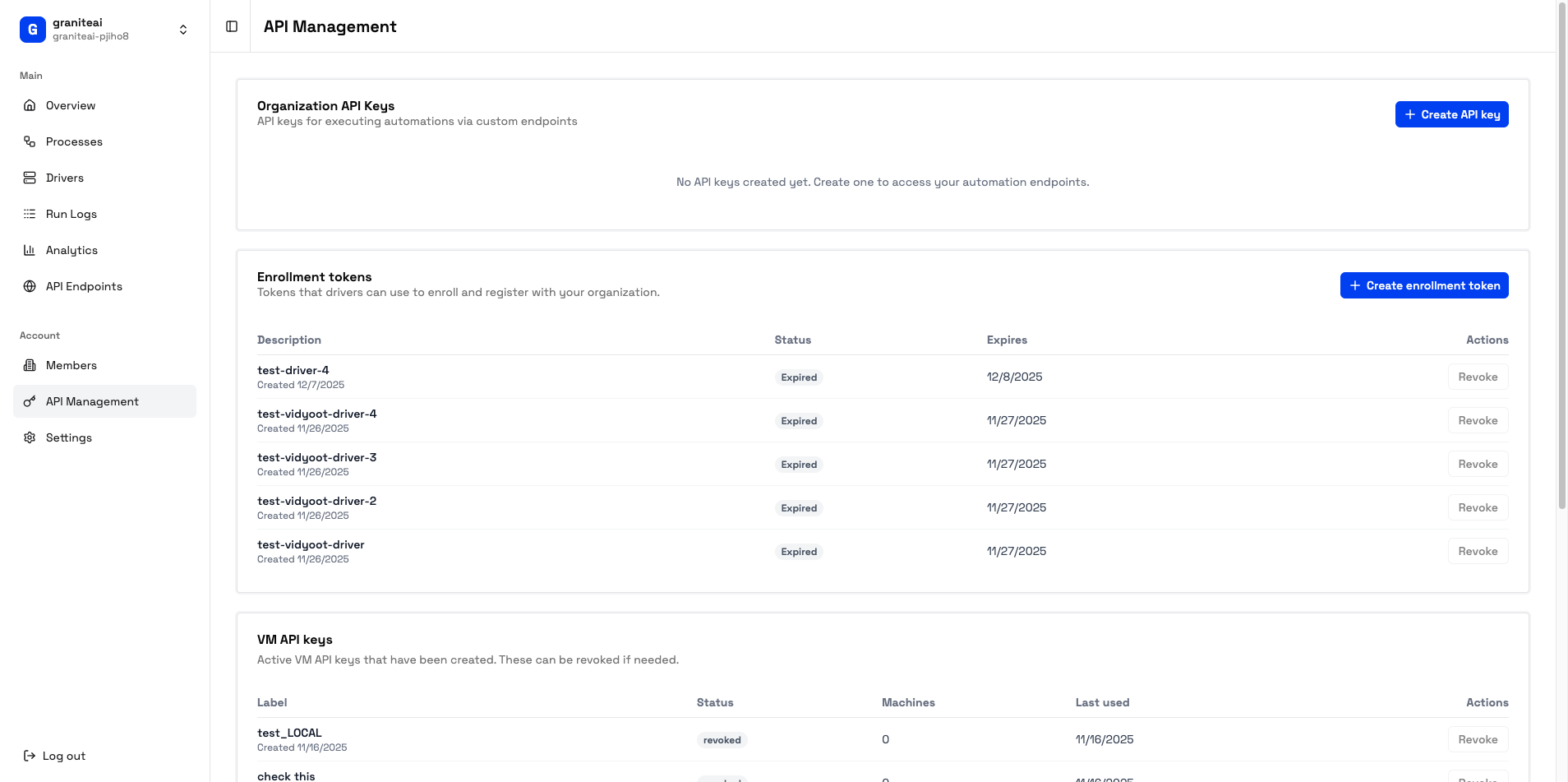
The API Management page is your central hub for:- API Keys - Authenticate external API calls
- Enrollment Tokens - Register new driver machines
- VM Machines - Monitor connected drivers
API Keys
API keys authenticate requests to your public endpoints.Creating an API Key
Using API Keys
Include the key in theX-Granite-API-Key header:
Managing Keys
| Action | How |
|---|---|
| View | See key name, creation date, last used |
| Revoke | Click the trash icon to delete |
You can have multiple API keys for different services or environments.
API Key Best Practices
Use separate keys for different services
Use separate keys for different services
Create distinct keys for production, staging, and different integrations. If one is compromised, you only revoke that one.
Rotate keys periodically
Rotate keys periodically
Every 90 days, create a new key and phase out the old one.
Never commit keys to git
Never commit keys to git
Use environment variables or secret managers instead.
Monitor usage
Monitor usage
Check Analytics to see if keys are being used unexpectedly.
Enrollment Tokens
Enrollment tokens are one-time-use codes for registering new driver machines.Creating an Enrollment Token
Token Properties
| Property | Description |
|---|---|
| One-time use | Token is consumed after enrollment |
| 24-hour expiry | Unused tokens expire after 24 hours |
| Organization-bound | Driver joins your specific org |
Revoking Tokens
If a token hasn’t been used yet, you can revoke it:- Find the token in the list
- Click the trash icon
- Confirm revocation
VM Machines (Drivers)
View all driver machines connected to your organization.Machine List
Each entry shows:| Field | Description |
|---|---|
| Name | Machine identifier |
| Status | Online (green), Offline (gray), Busy (yellow) |
| Last Seen | When it last communicated |
| Current Job | What it’s working on (if busy) |
Machine Status
Online
Ready to accept jobs
Busy
Currently running an automation
Offline
Not connected
Managing Machines
From the machine detail view, you can:- View details - IP address, OS version, capabilities
- See job history - What it has run recently
- Remove machine - Unregister from your organization
Queue Status
The API Management page also shows queue metrics:| Metric | Description |
|---|---|
| Jobs Queued | Automations waiting for a driver |
| Avg Wait Time | How long jobs wait in queue |
| Active Drivers | Number of online machines |